How to Automate Trading in Tradier or Interactive Brokers accounts (Step-by-Step)

Set up automated trading in ~15–30 minutes (plus 1–2 business days for Global AutoTrading to send login access). Your funds stay at your broker (Tradier or Interactive Brokers). We never have access to withdraw money. Once connected, trades execute automatically — no coding, no charts, no manual order entry.
There are 3 parties involved:
  • Global AutoTrading executes trades in your brokerage account (only US-based accounts).
  • Your broker (Tradier or IBKR) holds your funds and receives the orders.
  • Advanced AutoTrades sends the trade signals that Global AutoTrading converts into orders.
Which broker should you use?
  • Tradier is great if you trade SPY to minimize your broker commissions.

  • Interactive Brokers (IBKR) is best if you trade SPX.

Not sure? If your strategy uses SPX, choose IBKR.


The setup steps below are the same for both.

Phase 1 — Connect Global AutoTrading to your broker (10–15 minutes)

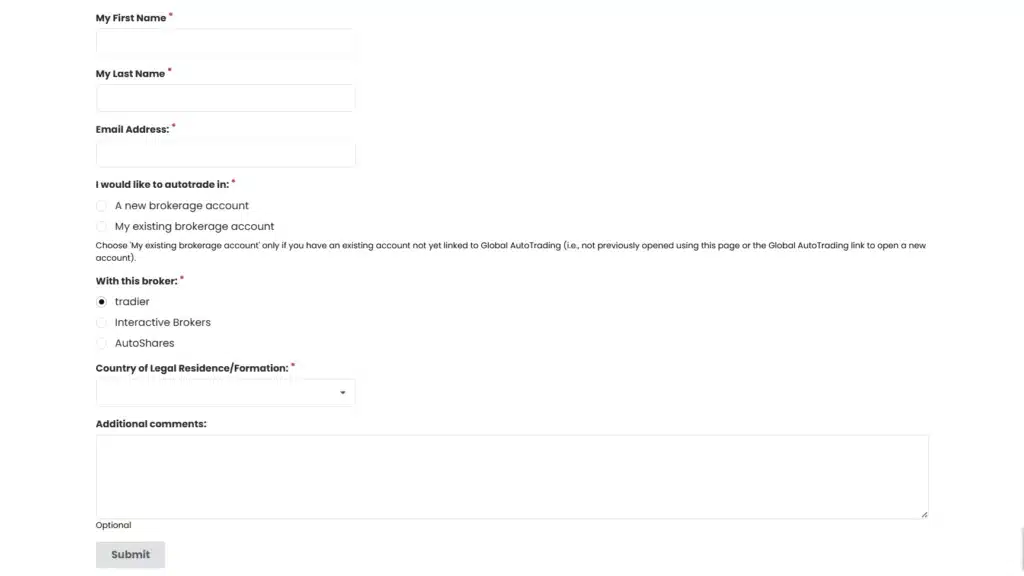
  1. Fill out the Global AutoTrading form and choose: “I would like to autotrade in my existing brokerage account.”
  2. Make sure your broker account is funded (Tradier or IBKR).

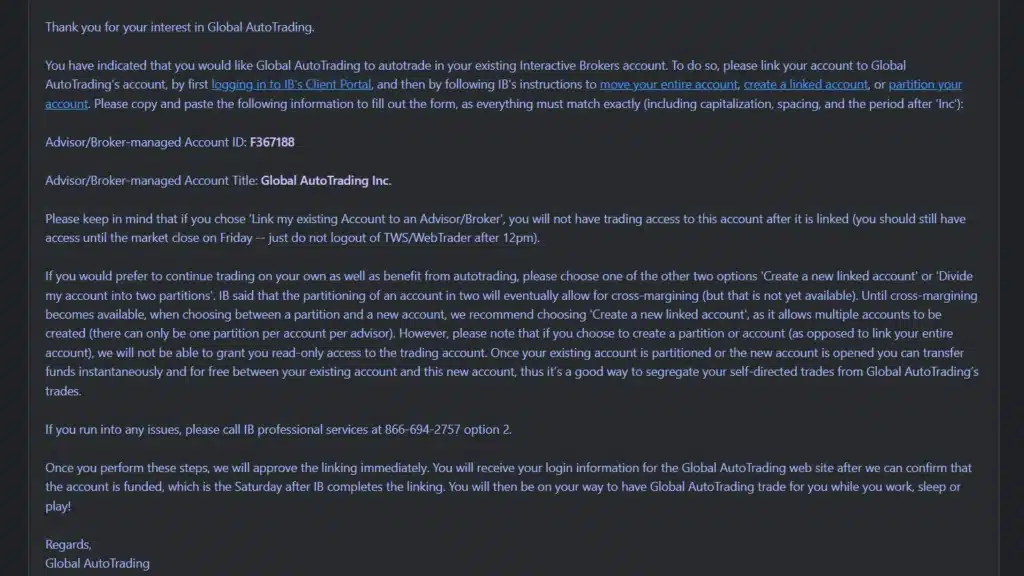
  3. Complete any required Global AutoTrading linking steps you receive by email.

Checkpoint: You’ll receive your Global AutoTrading login + instructions within 1–2 business days after your account is funded and linked.

Phase 2 — Activate your subscription (5 minutes)

  1. Start your trial to your preferred Advanced AutoTrades strategy (after Global AutoTrading is connected), to receive your allocation guidance.
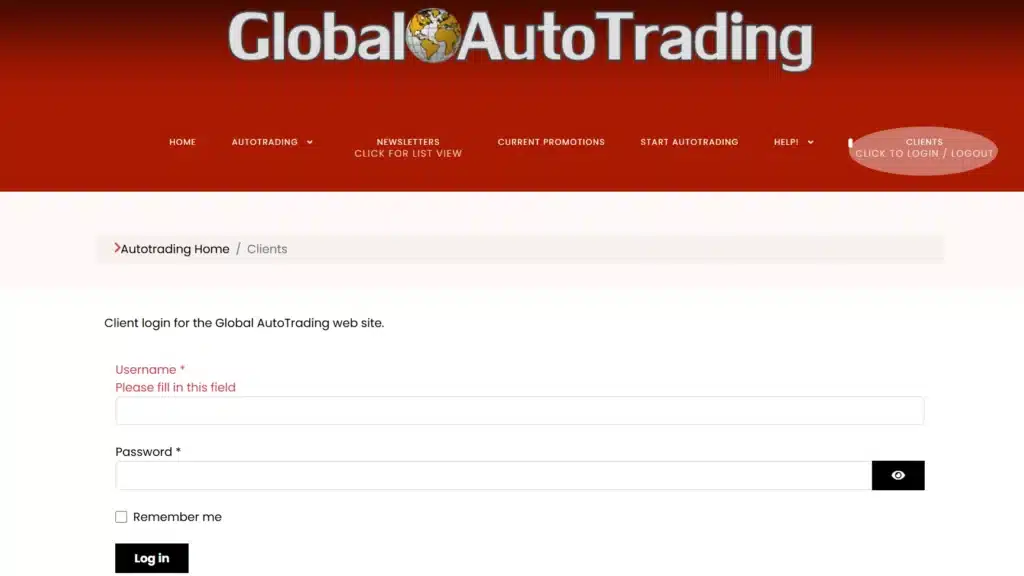
  2. Log into your Global AutoTrading account.
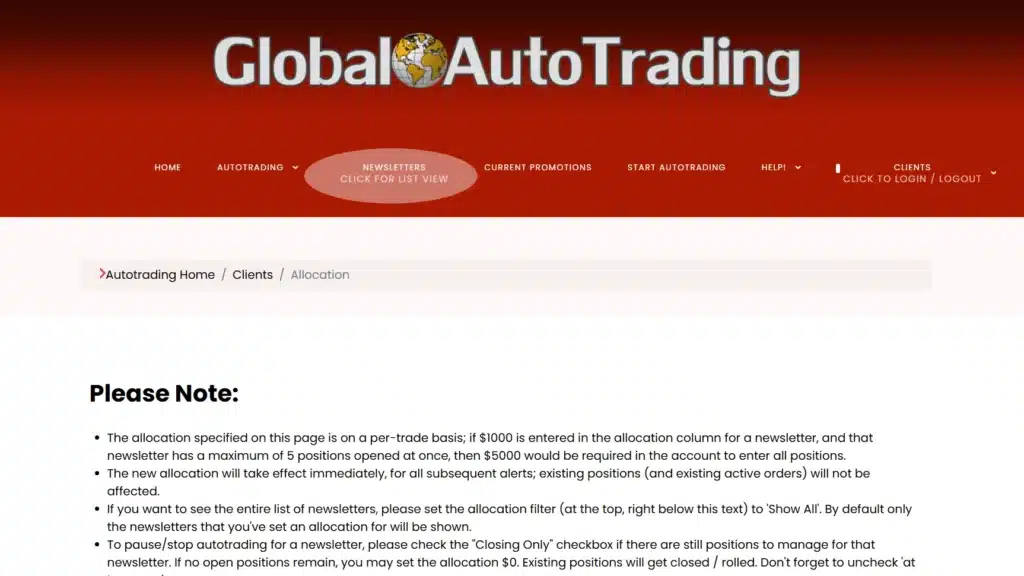
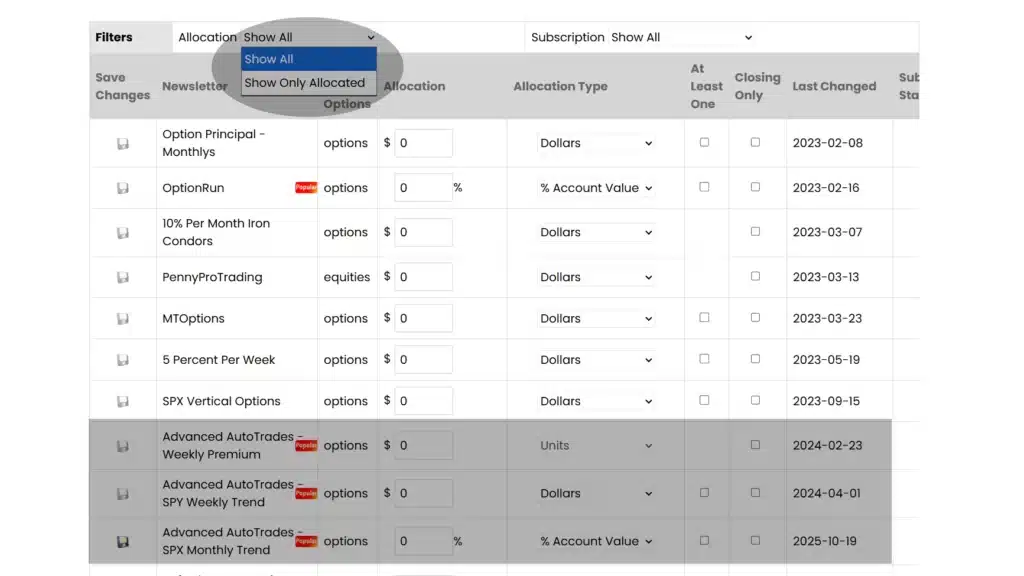
  3. Click “Newsletters” and then “Show All” to see the list of signal services.

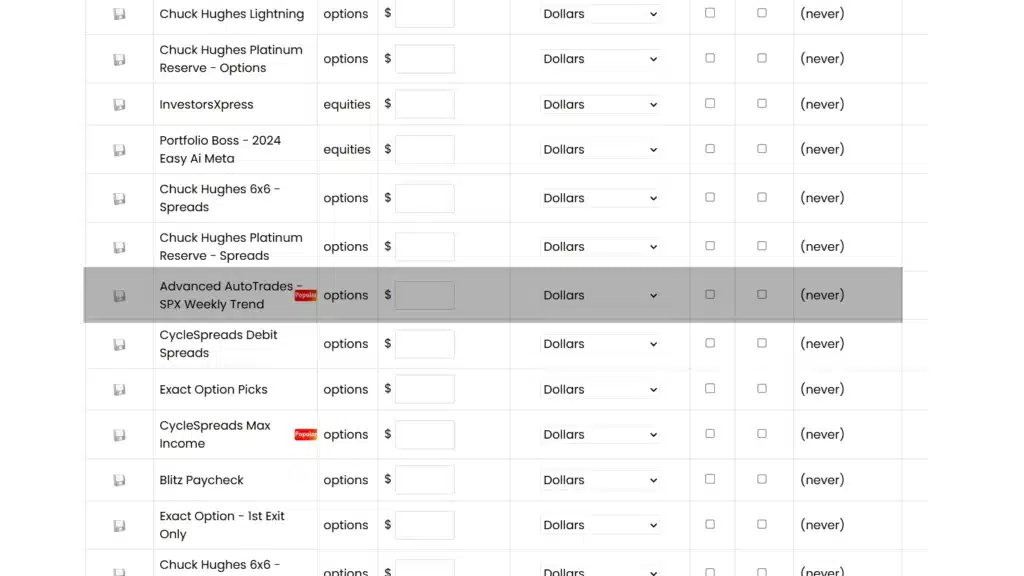
Important: You may see many services in the list. That’s normal. Only enable the strategies you subscribed to with Advanced AutoTrades.

Phase 3 — Set your allocations inside Global AutoTrading (final step)

  1. Set your allocation for your strategy (Monthly Trend, Weekly Trend, Weekly Premium, or VIP).
  2. We verify with Global AutoTrading that your subscription is active.

  3. Once your subscription is confirmed, no further setup is required — trades will execute automatically based on your allocation.

Finish line: You’re done. No further action is required.

That’s a lot of steps, but once you complete this, autotrading can begin, and it should be smooth sailing from there.

Your Control & Safety — What Automation Can and Can’t Do

What automation CAN do

  • Execute trades for the strategies you’ve enabled
  • Follow predefined entry and exit rules
  • Run hands-free after you set your allocation

What automation CANNOT do

  • Withdraw funds from your broker
  • Change your broker account settings
  • Trade strategies you didn’t enable

Need Help?

If you’re unsure about something, email our support team. We’ll walk you through it.